
دليل الاستخدام
1. قبل أول مزاد
أين تجد لقطة
بعد التثبيت من متجر تطبيقات سلة، تفتح لوحة لقطة من داخل لوحة تحكم متجرك: التطبيقات ← لقطة. لا يوجد حساب خارجي ولا كلمة مرور جديدة؛ اللوحة لا تعمل خارج سلة أصلًا.
أضف سعر التكلفة لمنتجاتك
أهم خطوة تحضيرية. الحد الأدنى الذي يحمي هامش ربحك يُحسب من حقل «سعر التكلفة» في صفحة المنتج داخل سلة. منتج بلا تكلفة مسجّلة يظهر في لوحة لقطة بتحذير «لا تكلفة»، ويمكن عرضه في مزاد، لكن الحماية التلقائية لن تعمل عليه، ويبقى لك خيار إدخال حد أدنى كمبلغ محدد.
2. إنشاء مزاد
من اللوحة اضغط «+ مزاد جديد». الحقول الأساسية ثلاثة، والباقي له قيم افتراضية معقولة.
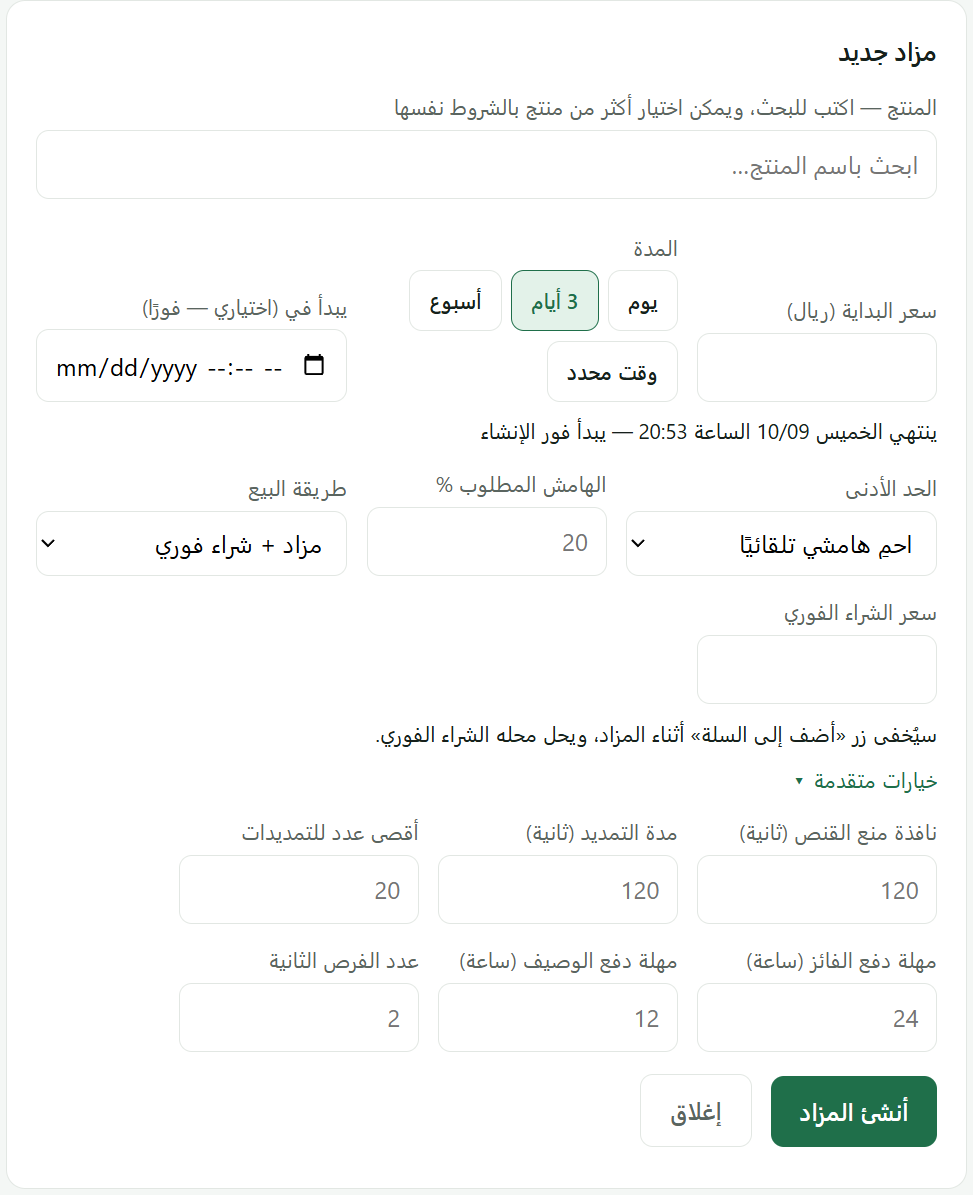
- المنتج
- اكتب للبحث في منتجات متجرك. تظهر الصورة وسعر الرف والتكلفة والكمية. يمكن اختيار أكثر من منتج فيُنشأ مزاد لكل منها بالشروط نفسها. المنتج الذي نفدت كميته لا يمكن اختياره.
- سعر البداية
- أول سعر يُعرض للمزايدين. يقترح التطبيق نصف سعر الرف، وسعر بداية منخفض يجذب مزايدات أكثر لأن الحد الأدنى يحميك على أي حال.
- المدة
- يوم، ثلاثة أيام، أسبوع، أو وقت محدد. يعرض النموذج متى سينتهي المزاد بالضبط. يمكن أيضًا جدولة البداية لوقت لاحق من حقل «يبدأ في».
- الحد الأدنى
- ثلاثة خيارات: احمِ هامشي تلقائيًا (أدخل نسبة الهامش، ويُحسب الحد من التكلفة)، مبلغ محدد، أو بلا حد أدنى. الحد لا يظهر للمزايدين أبدًا؛ يرون فقط «تم بلوغ الحد الأدنى» أو لا. إن انتهى المزاد دون بلوغه لا يُباع المنتج.
- طريقة البيع
- مزاد + شراء فوري: يظهر سعر شراء فوري بجانب المزاد فلا تخسر من يريد الشراء الآن، ومن يشتري فورًا يُنهي المزاد. مزاد فقط: يُخفى «أضف إلى السلة» طوال المزاد.
الشروط المتقدمة
| نافذة منع القنص | إن جاءت مزايدة داخل آخر (كذا) ثانية، يُمدَّد المزاد بمدة التمديد. هكذا يفوز من يدفع أكثر لا من يضغط أسرع. |
|---|---|
| أقصى عدد للتمديدات | سقف التمديدات حتى لا يطول المزاد بلا نهاية. |
| مهلة دفع الفائز | بالساعات. يصل الفائز بريد بالفوز وتذكير قبل انتهاء المهلة. |
| مهلة دفع الوصيف | مهلة أقصر لصاحب ثاني أعلى مزايدة إن تخلّف الفائز. |
| عدد الفرص الثانية | كم مزايدًا يُعرض عليه المنتج بعد تخلف الفائز قبل أن يُعلن «لم يُبع». صفر يعني أن تخلّف الفائز ينهي المزاد. |
القيم الفارغة تأخذ الشروط الافتراضية للمتجر.
3. ماذا يرى عملاؤك
يظهر المزاد تلقائيًا في متجرك بلا أي تعديل على القالب:
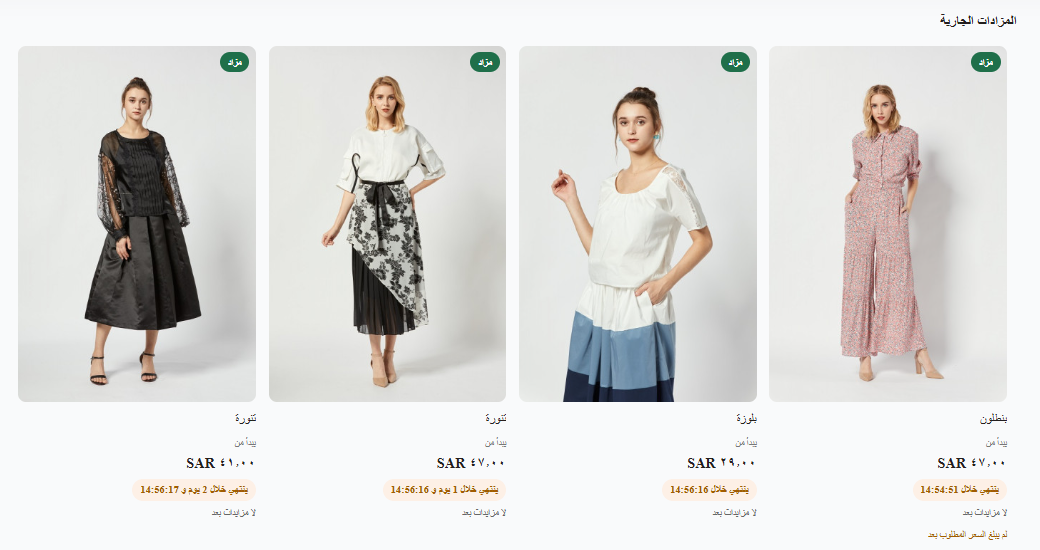
- الصفحة الرئيسية: شريط «المزادات الجارية» بالسعر الحالي وعدد المزايدات والعداد.
- بطاقات المنتج في التصنيفات والبحث: شارة «مزاد» بدل زر الإضافة السريعة، فلا يمكن شراء منتج معروض في مزاد بسعر الرف.
- صفحة المنتج: لوحة المزايدة مكان السعر وزر الإضافة.
- السلة: إن وُجد فيها منتج معروض في مزاد (أُضيف قبل بدايته مثلًا) يُزال وحده، وباقي السلة يُشترى عاديًا.
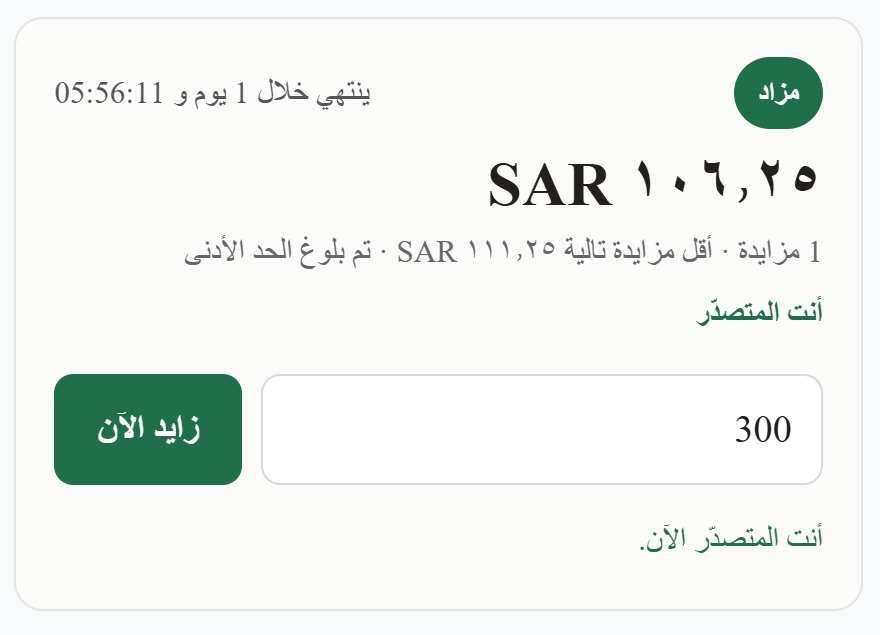
كيف تعمل المزايدة
العميل يزايد بحسابه في متجرك (يجب أن يكون مسجّل الدخول). يضع حدّه الأعلى مرة واحدة، والنظام يزايد عنه تلقائيًا بأقل زيادة ممكنة كلما زايد غيره، حتى حدّه. رفع الحد الأعلى لا يرفع السعر الحالي؛ العميل يزايد ضد الآخرين لا ضد نفسه. عند تساوي حدّين تفوز المزايدة الأسبق.
المبالغ كلها بالريال الكامل، بلا هللات. أقل زيادة على السعر الحالي: 1 تحت 20 ، و5 من 20 إلى 49، و10 من 50 إلى 199، و25 من 200 إلى 999، و50 من 1,000 إلى 4,999، و100 من 5,000 إلى 19,999، و500 من 20,000 فأكثر. أي مبلغ كامل فوق ذلك مقبول.
إن كان للمزاد سعر شراء فوري، فأي مزايدة تساويه أو تزيد عليه تشتري المنتج فورًا بسعر الشراء الفوري وينتهي المزاد (يُسأل العميل قبلها). ويختفي الشراء الفوري حين يبلغه السعر الحالي.
من يتجاوزه أحد يرى ذلك فورًا في اللوحة، ويصله شريط إشعار في أي صفحة من المتجر، وبريد إن كان قد أغلق المتصفح. أسماء المزايدين تظهر للجميع مقنّعة (الحرف الأول فقط).
4. الإغلاق والدفع
- عند انتهاء الوقت يفوز صاحب أعلى حد بالسعر الذي وصل إليه المزاد، بشرط بلوغ الحد الأدنى. يصله بريد بالفوز.
- الطلب يُنشأ عند ضغط الفائز «إتمام الدفع» في صفحة المنتج، ويُنشأ في سلة بسعر الفوز بالضبط لا بسعر الرف، ثم يُحوَّل إلى صفحة الدفع المعتادة في متجرك. أنت لا تفعل شيئًا.
- التسليم حسب إعداداتك: استلام من فرع، شحن (يُدخل الفائز عنوانه الوطني في اللوحة ولا نخزنه؛ تحديد موقعه على الخريطة يعبّئ المدينة والحي والشارع تلقائيًا)، أو يختار الفائز بين الاثنين. عند الشحن يرى الفائز شركات الشحن التي تغطي مدينته حسب مناطق الشحن في سلة، مع رسوم كل شركة، ويختار إحداها إن كان هناك أكثر من واحدة.
- إن لم يدفع في المهلة: يُلغى طلبه وتُعاد الكمية للمخزون، ويُعرض المنتج على صاحب ثاني أعلى مزايدة بسعره هو لمهلة أقصر، وهكذا حتى عدد الفرص الذي حددته. إن لم يبقَ أحد يُعلن المزاد «لم يُبع» ويمكنك إعادة طرحه بضغطة.
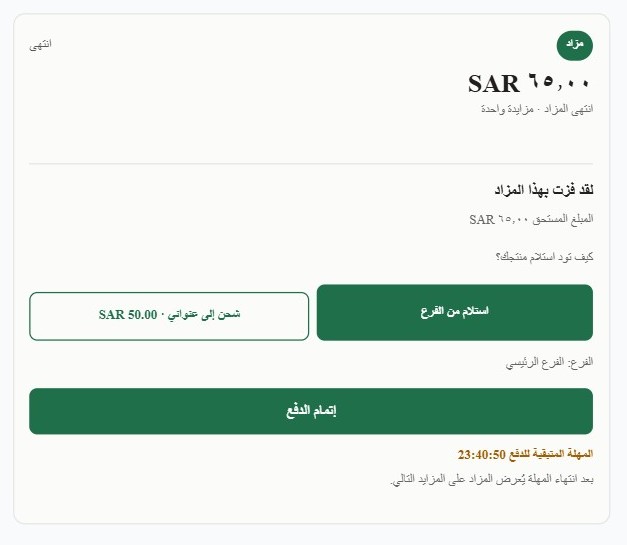
تظهر حالة الدفع في اللوحة لكل مزاد: «بانتظار الدفع»، «مدفوع»، «انتهت مهلة الدفع»، «فرصة ثانية»، ويظهر رابط طلب سلة نفسه.
5. اللوحة جزءًا جزءًا
هكذا تبدو لوحة لقطة داخل لوحة تحكم سلة، من أعلى إلى أسفل.
الشريط العلوي

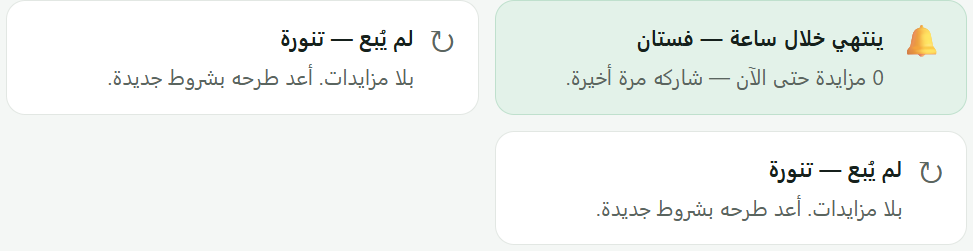
شريط الانتباه
يظهر فقط حين يوجد ما يحتاج نظرك: مزاد يُغلق خلال ساعة بلا مزايدات، مهلة دفع توشك على الانتهاء، منتج نفدت كميته وهو في مزاد، أو مزاد انتهى دون بيع ويمكن إعادة طرحه.
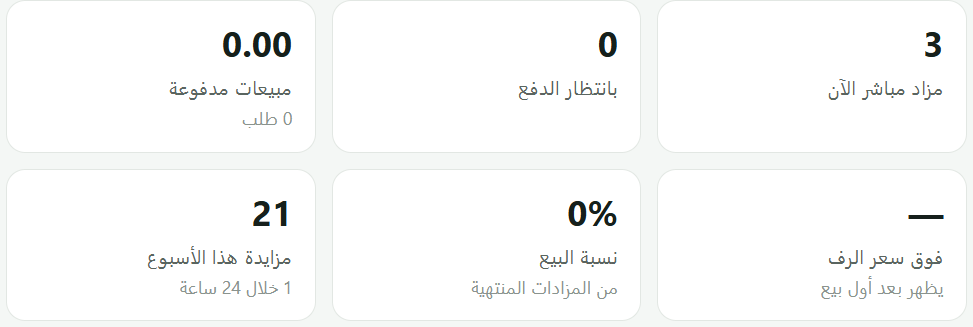
الإحصاءات
ستة أرقام: المزادات الجارية الآن، بانتظار الدفع، المبيعات المدفوعة، الزيادة على سعر الرف في المزادات المباعة، نسبة ما بيع من المزادات المنتهية، والمزايدات هذا الأسبوع.
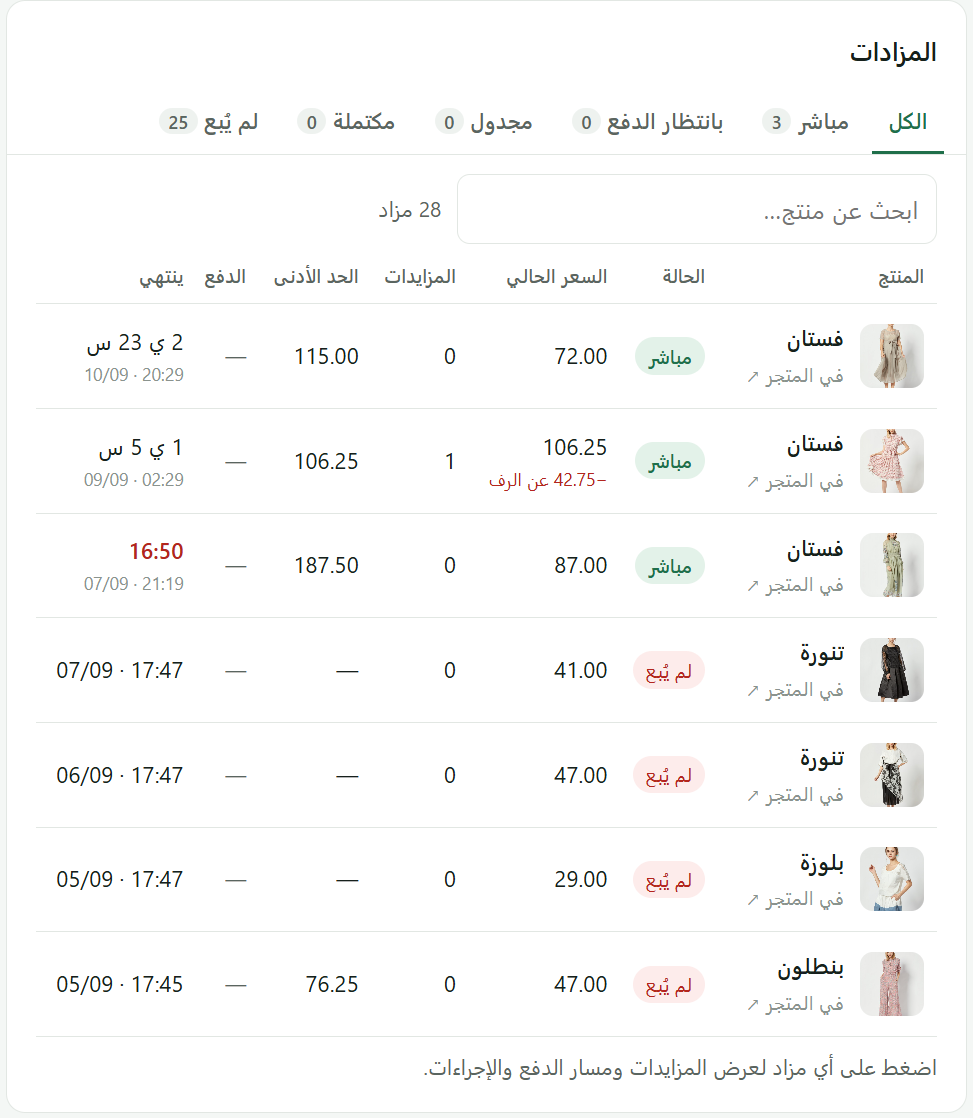
جدول المزادات
تبويبات بعدد كل حالة (الكل، مباشر، بانتظار الدفع، مجدول، مكتملة، لم يُبع) وبحث باسم المنتج. لكل مزاد: الحالة، السعر الحالي، عدد المزايدات، الحد الأدنى، حالة الدفع، وموعد الانتهاء بعدّاد حي. «في المتجر ↗» يفتح صفحة المنتج.
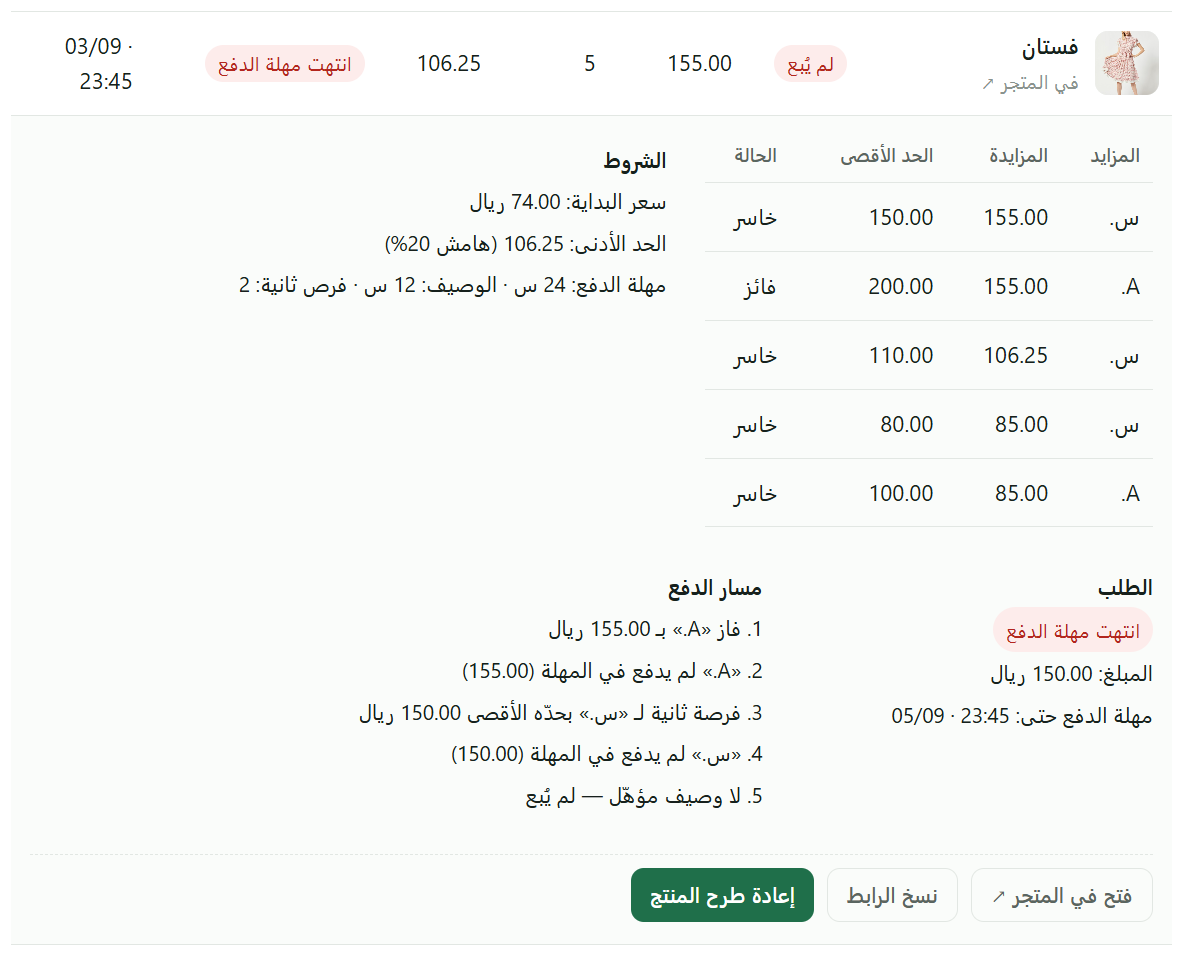
الصف الموسّع
اضغط أي صف ليتوسع: سجل المزايدات مع الحدود القصوى (تراها أنت فقط)، الشروط، صندوق الطلب برابط سلة، «مسار الدفع» (فاز ← تخلّف ← فرصة ثانية ← …)، والإجراءات: تعديل مزاد لم يبدأ، إلغاء مزاد بلا مزايدات، فتح في المتجر، نسخ الرابط، وإعادة طرح المنتج لمزاد لم يُبع.
آخر النشاط
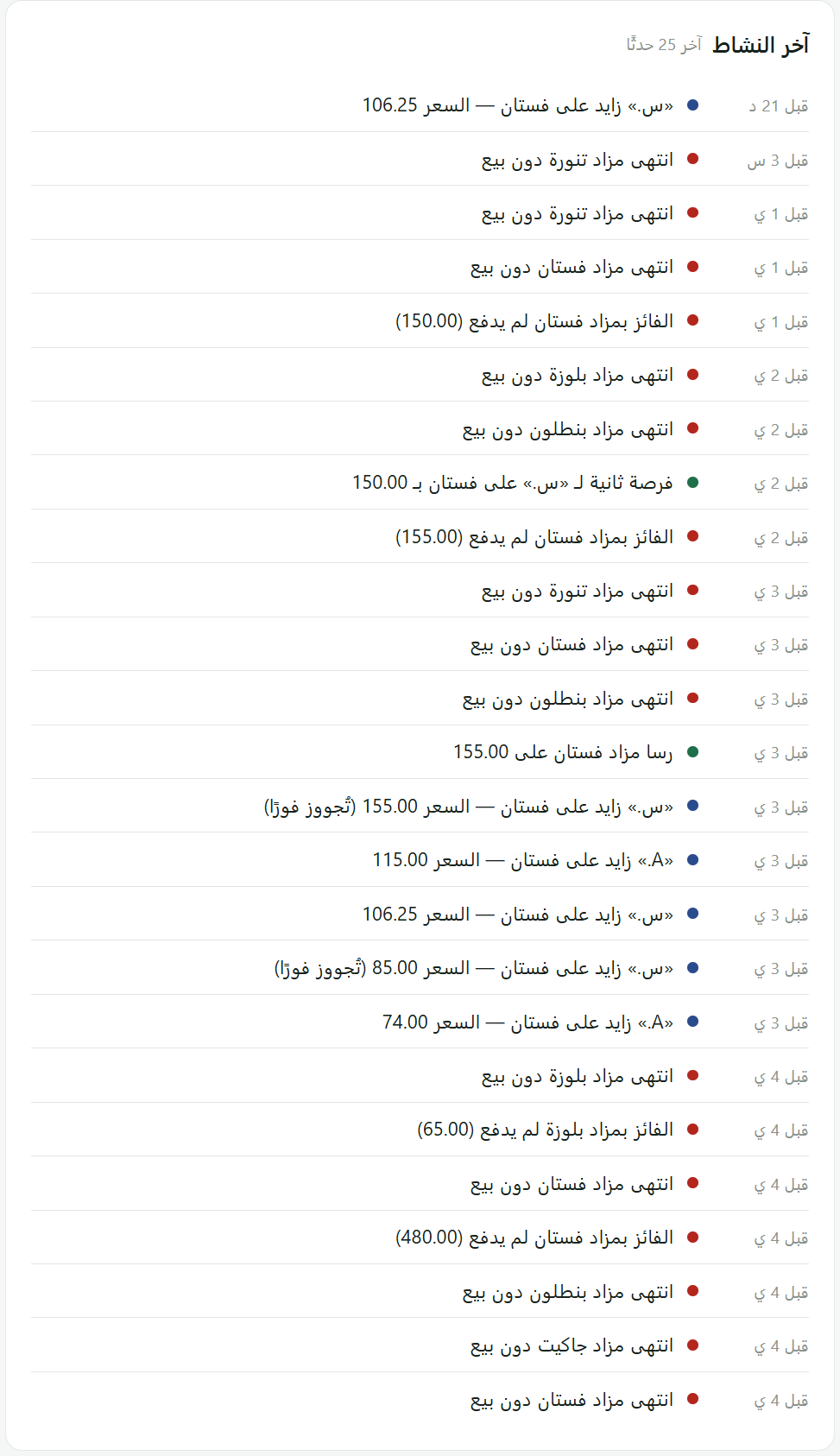
آخر خمسة وعشرين حدثًا في متجرك: مزايدات (بأسماء مقنّعة)، رسوّ المزادات، الفائز الذي دفع أو تخلّف، والمزادات التي انتهت دون بيع.
6. الإعدادات
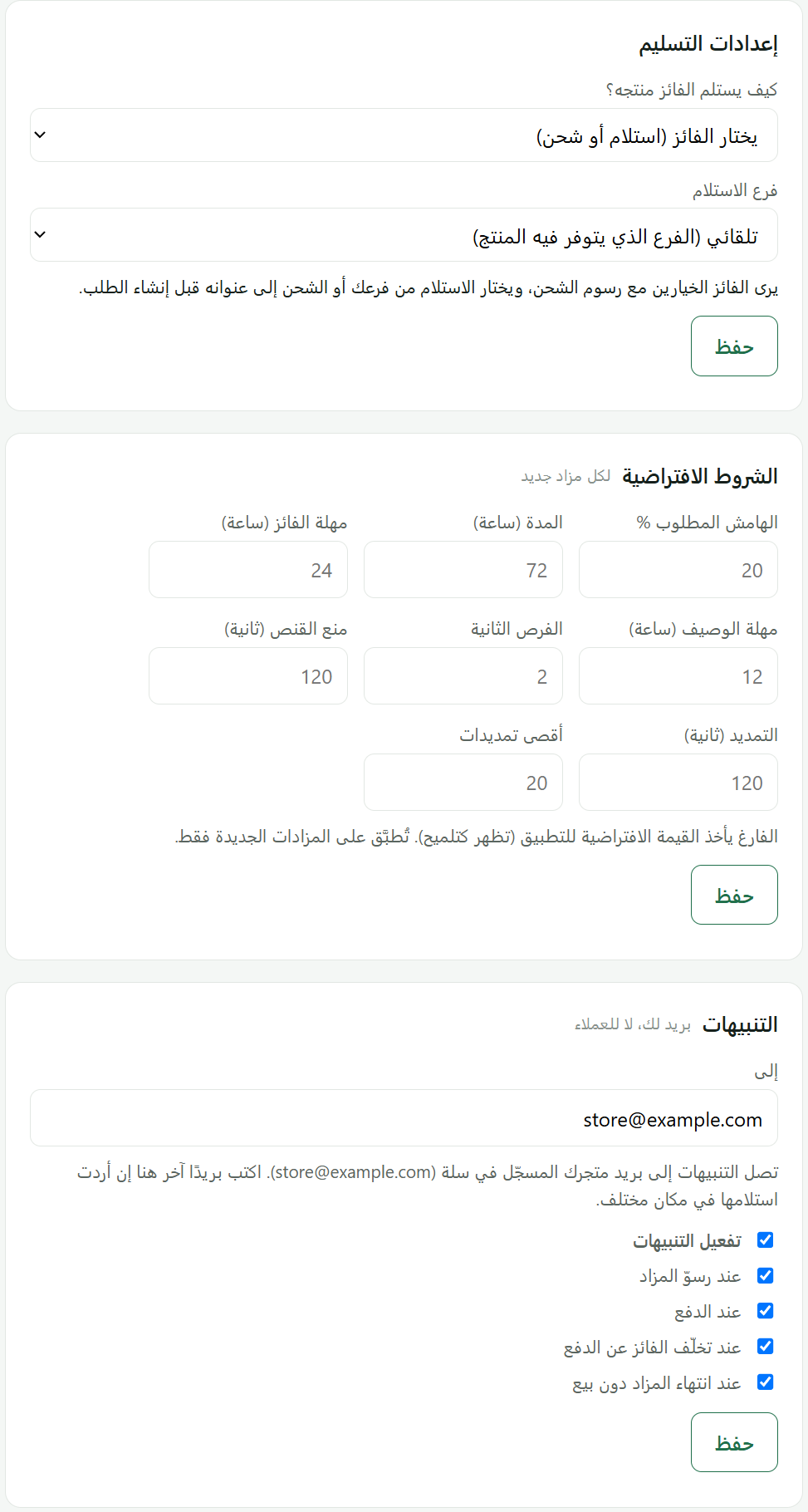
أربع بطاقات أسفل اللوحة، ولكل واحدة زر «حفظ» خاص بها.
- إعدادات التسليم
- استلام من الفرع (مع اختيار الفرع)، شحن إلى عنوانه (رسوم الشحن من مناطق الشحن في متجرك حسب مدينة الفائز)، أو يختار الفائز. مع الشحن حقل شركة الشحن: اتركه على «يختار الفائز» فيعرض التطبيق كل شركة تغطي مدينته مع رسومها، أو ثبّت شركة واحدة. وفي البطاقة نفسها طرق الدفع: ما يدفع به الفائز عند إتمام طلبه — بطاقة ائتمانية، مدى، Apple Pay، STC Pay، تحويل بنكي، الدفع عند الاستلام — كلها مختارة افتراضيًا فتظهر له المفعّلة منها في متجرك؛ ألغِ ما لا تريده لهذا النوع من البيع. لا تقبل سلة التقسيط (تابي وتمارا) على طلبات المزاد. إن اختار الفائز الدفع عند الاستلام يتوقف عدّاد مهلة الدفع ويبقى الطلب محجوزًا له، ويُحسب مدفوعًا حين تجعل حالة الطلب في سلة «تم التوصيل» أو «مكتمل»؛ وإن رفض الاستلام فألغِ الطلب في سلة.
- الشروط الافتراضية
- الهامش، المدة، المهل، عدد الفرص الثانية، ومنع القنص. تُطبَّق على كل مزاد جديد تتركه حقوله فارغة، فتصبح لوحة المزاد الجديد ثلاثة حقول فقط.
- العرض في المتجر
- أين يظهر شريط «المزادات الجارية» في الصفحة الرئيسية: قبل قسم المنتجات الأول (تحت بانرات المتجر مهما كان عددها — الافتراضي)، أو بعده، أو أعلى الصفحة، أو أسفلها. تحت الاختيار خريطة لأقسام صفحتك الرئيسية كما هي الآن، والشريط مرسوم في مكانه المختار. وفي البطاقة نفسها الألوان والتصميم: افتراضيًا يطابق التطبيق ألوان قالب متجرك تلقائيًا (لون الأزرار واستدارة الزوايا)، أو اختر ألوانًا مخصصة (اللون الأساسي، نص الزر، خلفية اللوحة، الاستدارة)، والنمط (أزرار ممتلئة، بإطار، أو بسيط بلا صندوق)، والأرقام في واجهة المزاد: مثل المتجر، إنجليزية دائمًا، أو عربية دائمًا. ألوان التنبيه (الأحمر للمزايدة عليك وانتهاء المهلة، البرتقالي للحد الأدنى) ثابتة لأنها تحمل معنى. معاينة تقريبية تحت الخيارات. وفيها أيضًا بعد مزاد بلا فائز: إخفاء المنتج من المتجر عندما ينتهي مزاده دون بيع حتى تُظهره أنت (مفعّل افتراضيًا). وصفحة المزادات: يضيف التطبيق «المزادات» إلى قائمة متجرك تلقائيًا ما دام هناك مزاد جارٍ؛ تفتح صفحة بالمزادات الجارية (الصفحة الرئيسية متبوعةً بـ #auctions). لا يظهر الرابط ولا الصفحة بلا مزاد جارٍ، ولا تحتاج إلى إنشاء صفحة، ويمكنك إيقاف الرابط من هنا أو تسميته باسم آخر («اسم الرابط والصفحة»). وإن أنشأت صفحة تعريفية باسم «المزادات» بالضبط فسيملؤها التطبيق أيضًا.
- التنبيهات
- بريد لك عند رسوّ المزاد، عند الدفع، عند تخلّف الفائز، وعند انتهاء مزاد دون بيع. يُرسل إلى بريد متجرك في سلة أو إلى عنوان تحدده، ويمكن إيقاف كل واحد على حدة. تختار لغة هذه الرسائل (العربية أو الإنجليزية)، أما رسائل الفائز والمزايدين فتصلهم بلغة المتجر التي زايدوا منها، باسم متجرك لا باسم التطبيق: اسم المتجر في خانة المرسِل وفي رأس الرسالة، والردّ عليها يصل إلى بريد متجرك (أو العنوان الذي حددته هنا).
7. أسئلة شائعة
هل أُلغي مزادًا فيه مزايدات؟
نعم، من الصف الموسّع في الجدول. يطلب منك اللوحة سبب الإلغاء (منتج تضرّر، خطأ في السعر…)، ويُرسل بالبريد إلى كل من زايد مع تأكيد أن لا مبلغ مستحقًا عليه. المزاد الذي رسا على فائز لا يُلغى من هنا؛ ألغِ طلبه من سلة إن لزم.
هل أعدّل المنتج أثناء المزاد؟
لا تغيّر سعره أو كميته أثناء المزاد. منتج تنفد كميته أثناء المزاد لن يقبل طلب الفائز، وستنبهك اللوحة إليه.
المنتجات ذات الخيارات (مقاسات، ألوان)؟
غير مدعومة في هذا الإصدار: لا يقبل التطبيق طرح منتج له خيارات، ويظهر بجانبه في قائمة المنتجات «له خيارات — غير مدعوم». اطرح منتجًا بلا خيارات، أو أنشئ لكل قطعة منتجًا مستقلًا.
هل هناك حد أدنى لسعر البداية؟
نعم، يجب أن يزيد على 3 ريال: بوابة الدفع في سلة ترفض المبالغ من 3 ريال فأقل، وقد ينتهي المزاد على سعر البداية نفسه.
ماذا يحدث للمنتج إن انتهى المزاد دون بيع؟
يُخفى من متجرك تلقائيًا (بلا مزايدات، أو دون بلوغ الحد الأدنى، أو بعد تخلّف الفائزين عن الدفع) حتى تُظهره أنت من صف المزاد في اللوحة، أو تعيد طرحه في مزاد جديد فيظهر مع بدايته. الخيار في بطاقة «العرض في المتجر» ويمكن إيقافه. إن حذفت التطبيق وكان منتج مخفيًا، أظهره من صفحة المنتج في سلة.
وماذا يحدث للمنتج بعد بيعه في المزاد؟
عندما يدفع الفائز يُخفى المنتج من متجرك تلقائيًا، دائمًا: ما بيع في مزاد لا يعود منتجًا عاديًا وحده. إن كانت لديك قطع أخرى منه فأظهره من صف المزاد في اللوحة («إظهار المنتج في المتجر») أو من صفحة المنتج في سلة، أو اطرحه في مزاد جديد.
هل أطرح منتجًا مخفيًا في مزاد؟
نعم. إن كنت تريد أن لا يظهر المنتج إلا في مزاده، أخفِه في سلة ثم اطرحه: يظهر في متجرك مع بداية المزاد، ويعود مخفيًا عندما ينتهي المزاد (بيعًا أو دون بيع أو إلغاءً). يظهر بجانبه في قائمة المنتجات «مخفي — يظهر مع المزاد».
ماذا لو استرجع العميل المبلغ؟
عند استرجاع طلب مدفوع من سلة تتحول حالة المزاد إلى «مسترد» وتُستبعد من المبيعات المدفوعة. إلغاؤك لطلب غير مدفوع من سلة يُلغي مزاده.
ماذا يحدث إن حذفت التطبيق؟
تُلغى المزادات الجارية والمجدولة والطلبات غير المدفوعة فورًا. المزادات المدفوعة تاريخ لا يُمس، وطلباتها تبقى في سلة كما هي.
ما الذي تخزنونه عن عملائي؟
معرّف العميل في سلة واسمًا مقنّعًا فقط. لا أسماء كاملة ولا جوالات ولا بريد ولا عناوين. التفاصيل في سياسة الخصوصية.
هل يمكن للعميل أن يعرف حدّي الأدنى أو حدّ غيره الأعلى؟
لا. الحد الأدنى يظهر كحالة فقط (تحقق أو لم يتحقق)، والحد الأعلى لكل مزايد سرّ لا يراه سواه، وأنت تراه في اللوحة لأنه مزادك.
8. الدعم
راسلنا على auctions@lagtaauctions.com واذكر اسم المتجر ورقم المزاد إن وُجد.
User guide
1. Before your first auction
Where Lagta lives
After installing from the Salla App Store, open Lagta from inside your store's dashboard: Apps → Lagta. There is no outside account and no new password; the dashboard does not even work outside Salla.
Add a cost price to your products
The most important preparation. The floor that protects your margin is computed from the “Cost price” field on the product page in Salla. A product with no cost recorded shows a “no cost” warning in Lagta; it can still be auctioned, but the automatic protection will not apply to it, and you can still type a fixed floor amount.
2. Creating an auction
Press “+ New auction” in the dashboard. Three fields are essential; everything else has sensible defaults.
- Product
- Type to search your catalogue. You see the image, shelf price, cost and stock. Pick several products and one auction is created per product with the same terms. A sold-out product cannot be selected.
- Opening price
- The first price bidders see. The app suggests half the shelf price; a low opening attracts more bids, and the floor protects you regardless.
- Duration
- One day, three days, a week, or a specific time. The form shows exactly when the auction will end. You can also schedule the start from the “Starts at” field.
- Floor (reserve)
- Three options: protect my margin automatically (enter the margin percentage; the floor is computed from the cost), a fixed amount, or no floor. Bidders never see the number, only whether it has been met. If the auction ends below the floor, the product is not sold.
- Selling mode
- Auction + buy now: a buy-now price appears beside the auction so you do not lose the customer who wants it now; a buy-now ends the auction. Auction only: “Add to cart” is hidden for the whole run.
Advanced terms
| Anti-snipe window | A bid inside the final N seconds extends the auction by the extension length, so the highest payer wins, not the fastest clicker. |
|---|---|
| Max extensions | A cap so the auction cannot run on forever. |
| Winner payment deadline | In hours. The winner gets a win email and a reminder before the deadline. |
| Runner-up deadline | A shorter window for the second-highest bidder if the winner defaults. |
| Second chances | How many bidders are offered the lot after the winner defaults before it is declared unsold. Zero means the winner's default ends it. |
Empty fields take the store's default terms.
3. What your customers see
The auction appears in your store automatically, with no theme changes:
- Home page: a “Live auctions” strip with the current price, bid count and countdown.
- Product cards in categories and search: an “Auction” badge replaces quick-add, so an auctioned product cannot be bought at the shelf price.
- Product page: the bidding panel replaces the price and add-to-cart.
- Cart: an auctioned product found in the cart (added before the auction started, say) is removed on its own; the rest of the cart checks out normally.
How bidding works
Customers bid with their account on your store (they must be signed in). Each sets a maximum once, and the system bids on their behalf in the smallest increments whenever someone else bids, up to that maximum. Raising your maximum never raises the current price; you bid against others, not yourself. On equal maximums the earlier bid wins.
All amounts are whole riyals, no halalas. The smallest raise over the current price: 1 under 20 , 5 from 20 to 49, 10 from 50 to 199, 25 from 200 to 999, 50 from 1,000 to 4,999, 100 from 5,000 to 19,999, and 500 from 20,000 up. Any whole amount above that is accepted.
If the auction has a buy-now price, any bid at or above it buys the item at once at the buy-now price and ends the auction (the customer is asked first). Buy-now disappears once the current price reaches it.
Whoever gets outbid sees it in the panel at once, gets a notice bar on any page of the store, and an email if they had closed the browser. Bidder names are shown masked to everyone (first letter only).
4. Closing and payment
- When time runs out, the highest maximum wins at the price the auction reached, provided the floor was met. The winner gets an email.
- The order is created when the winner presses “Pay” on the product page. It is created in Salla at exactly the winning price, not the shelf price, and the winner is sent to your store's usual checkout. You do nothing.
- Delivery follows your settings: pickup from a branch, shipping (the winner types their national address in the panel; we never store it, and dropping a pin on the map fills the city, district and street), or the winner chooses between the two. When shipping, the winner sees the couriers whose Salla shipping zones cover their city, each with its fee, and picks one if there is more than one.
- If they do not pay in time: their order is cancelled and the stock returned, and the lot is offered to the second-highest bidder at their own price for a shorter window, and so on up to the number of second chances you set. When nobody is left, the auction is declared unsold and you can relist it in one click.
The payment state shows in the dashboard for every auction: awaiting payment, paid, deadline passed, second chance, with a link to the Salla order itself.
5. The dashboard, part by part
This is how the Lagta dashboard looks inside Salla's dashboard, top to bottom.
The top bar
The attention strip
It appears only when something needs a look: an auction closing within the hour with no bids, a payment deadline about to pass, a product that sold out while in auction, or an auction that ended unsold and can be relisted.
Stats
Six numbers: live now, awaiting payment, paid revenue, uplift over the shelf price across sold lots, sell-through of finished auctions, and bids this week.
The auctions table
Tabs with a count per state (all, live, awaiting payment, scheduled, completed, unsold) and a search by product name. Per auction: state, current price, bid count, floor, payment state, and the end time with a live countdown. “In store ↗” opens the product page.
The expanded row
Click any row to expand it: the bid book with maximums (only you see them), the terms, the order box with the Salla link, the payment chain (won → defaulted → second chance → …), and the actions: edit an auction that has not started, cancel one with no bids, open in store, copy the link, and relist an unsold lot.
Recent activity
The last twenty-five events in your store: bids (with masked names), auctions won, winners who paid or defaulted, and auctions that ended unsold.
6. Settings
Four cards at the bottom of the dashboard, each with its own “Save” button.
- Delivery
- Pickup from a branch (choose the branch), shipping to the winner's address (the fee comes from your shipping zones, by the winner's city), or the winner chooses. With shipping there is a Courier field: leave it on "the winner chooses" and the app offers every company covering their city with its fee, or pin one company. The same card holds Payment methods: what the winner may pay with when completing the order — credit card, mada, Apple Pay, STC Pay, bank transfer, cash on delivery — all chosen by default, so the checkout shows those enabled in your store; untick what you do not want for this kind of sale. Salla does not take instalments (Tabby, Tamara) on auction orders. If the winner picks cash on delivery, the payment deadline stops and the order stays held for them; it counts as paid when you set the order in Salla to «Delivered» or «Completed». If they refuse the delivery, cancel the order in Salla.
- Default terms
- Margin, duration, deadlines, second chances, anti-snipe. Applied to every new auction whose fields you leave empty, so the new-auction form becomes three fields.
- Store display
- Where the “live auctions” strip sits on your home page: before the first products section (below your banners, however many — the default), after it, at the top, or at the bottom. Under the choice, a map of your home page's sections as they are now, with the strip drawn in the chosen slot. The same card holds Colours and design: by default the app matches your theme automatically (button colour and corner radius), or pick custom colours (accent, button text, panel background, radius), a style (filled buttons, outlined, or minimal with no box), and the digits of the auction UI: same as the store, always Western, or always Arabic. The warning colours (red for outbid and deadline passed, amber for the reserve) stay fixed because they carry meaning. An approximate preview sits under the options. The card also holds After an auction with no buyer: hide the product in the store when its auction ends unsold, until you show it again (on by default). And Auctions page: the app adds “Auctions” to your store menu automatically while an auction is running; it opens a page with the running auctions (the home page followed by #auctions). Neither the link nor the page appears without a running auction, no page needs creating, and the link can be switched off here or given another name (“Name of the link and the page”). A static page titled exactly “Auctions” is filled by the app too.
- Notifications
- An email to you when an auction is won, when it is paid, when the winner defaults, and when an auction ends unsold. Sent to your store's email in Salla or an address you choose, in the language you pick (Arabic or English); each one can be switched off. Winners and bidders get their emails in the storefront language they bid from, in your store's name, not the app's: the store name is the sender and the header, and a reply lands in your store's email (or the address you set here).
7. Common questions
Can I cancel an auction that has bids?
Yes, from the expanded row in the table. The dashboard asks you for a reason (a damaged item, a price mistake…) and emails it to every bidder with a line confirming that nothing is owed. An auction already won by someone is not cancelled here; cancel its order in Salla if you must.
Can I edit the product during the auction?
Do not change its price or stock while the auction runs. A product that sells out during the auction will not accept the winner's order, and the dashboard flags it.
Products with options (sizes, colours)?
Not supported in this version: the app will not auction a product with options, and the product list marks it “has options — not supported”. Auction a product without options, or make each piece its own product.
Is there a minimum starting price?
Yes, it must be above 3 SAR: Salla's payment gateway refuses amounts of 3 SAR or less, and an auction can close at its starting price.
What happens to the product if the auction ends unsold?
It is hidden in your store automatically (no bids, reserve not met, or every winner defaulted) until you show it again from the auction's row in the dashboard, or relist it and it reappears as the new auction starts. The option lives in the “Store display” card and can be switched off. If you uninstall the app while a product is hidden, show it from the product page in Salla.
And after the product sells at auction?
Once the winner pays, the product is hidden in your store automatically, always: a lot sold at auction does not turn back into a regular product on its own. If you have more pieces, show it from the auction's row in the dashboard (“Show the product in the store”) or from the product page in Salla, or relist it in a new auction.
Can I auction a hidden product?
Yes. If you want a product seen only in its auction, hide it in Salla and then auction it: it is shown in your store when the auction starts and goes back into hiding when the auction is over (sold, unsold or cancelled). The product list marks it “hidden — shown for the auction”.
What if the customer gets a refund?
When a paid order is refunded in Salla, the auction's state becomes “refunded” and it leaves paid revenue. Cancelling an unpaid order in Salla cancels its auction.
What happens if I uninstall the app?
Live and scheduled auctions and unpaid orders are cancelled immediately. Paid auctions are history and untouched; their orders stay in Salla as they are.
What do you store about my customers?
The Salla customer id and a masked name, nothing else. No full names, mobiles, emails or addresses. Details in the privacy policy.
Can a customer learn my floor, or someone else's maximum?
No. The floor is shown only as a state (met or not), and each bidder's maximum is a secret nobody else sees; you see it in the dashboard because it is your auction.
8. Support
Write to auctions@lagtaauctions.com with your store name and the auction number if there is one.